
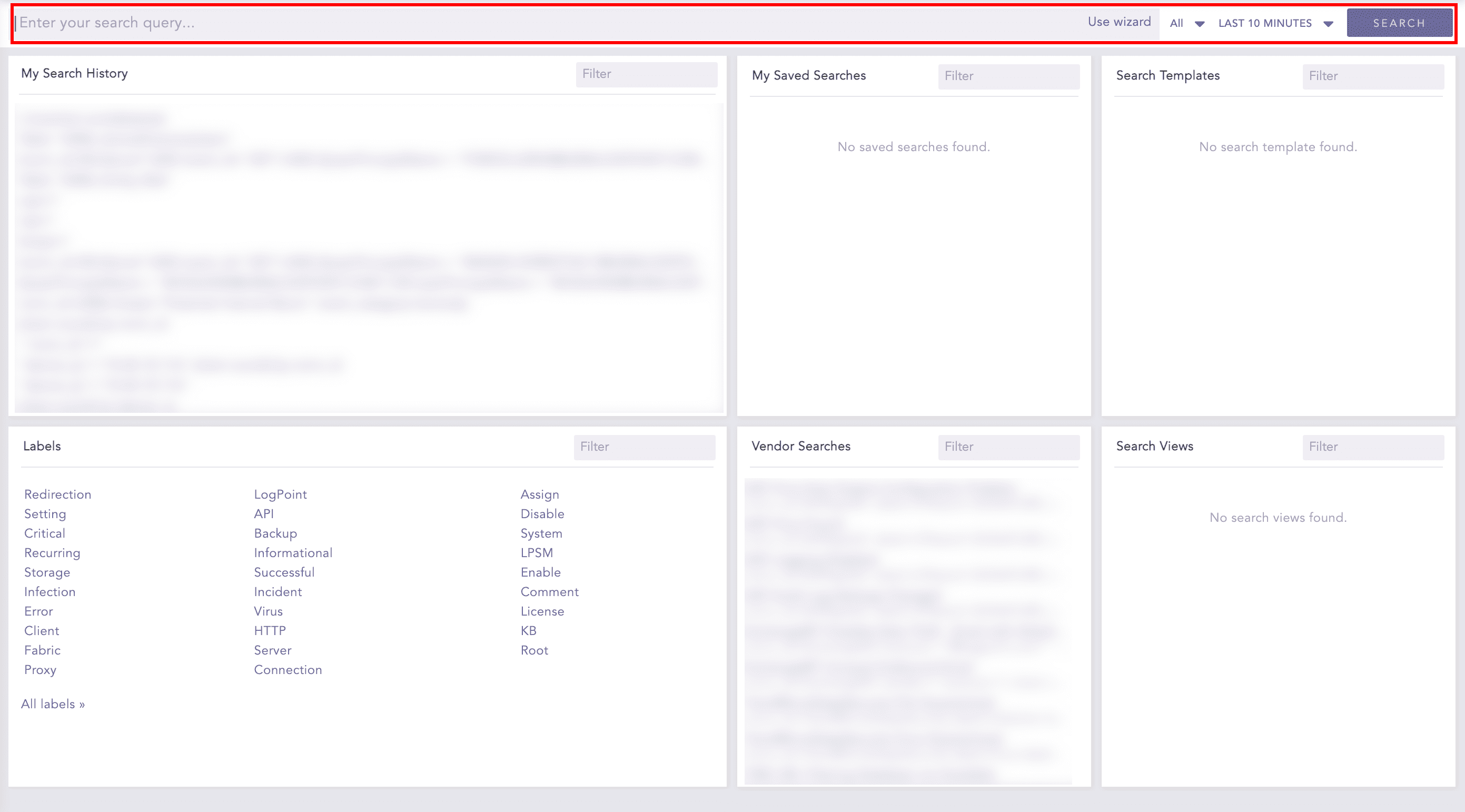
The Search Bar lets you search the indexed logs. It consists of:
The Query Bar is where you enter the query string. A Query String is a logical combination of words, phrases, or field values. You can either type a query string or build it to aggregate different values in the search result and display the result in a suitable graphical format.
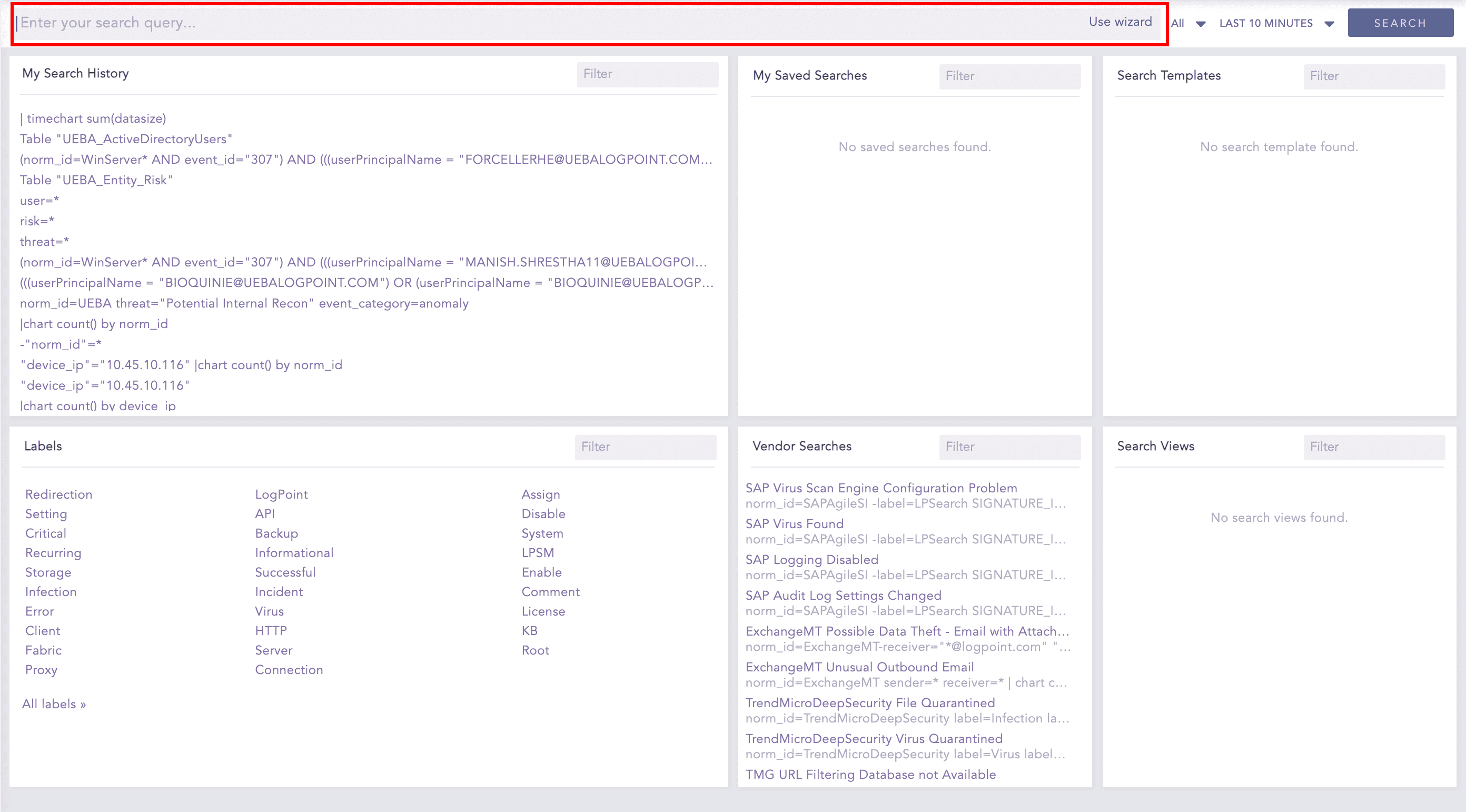
You can write queries in multiple lines in the Query Bar. Press Shift + Enter to add a new line.
Using multiple lines, you can easily visualize long queries. Additionally, it helps you keep track of all the sub-queries by emphasizing corresponding pairs of brackets.

Multi-line Query
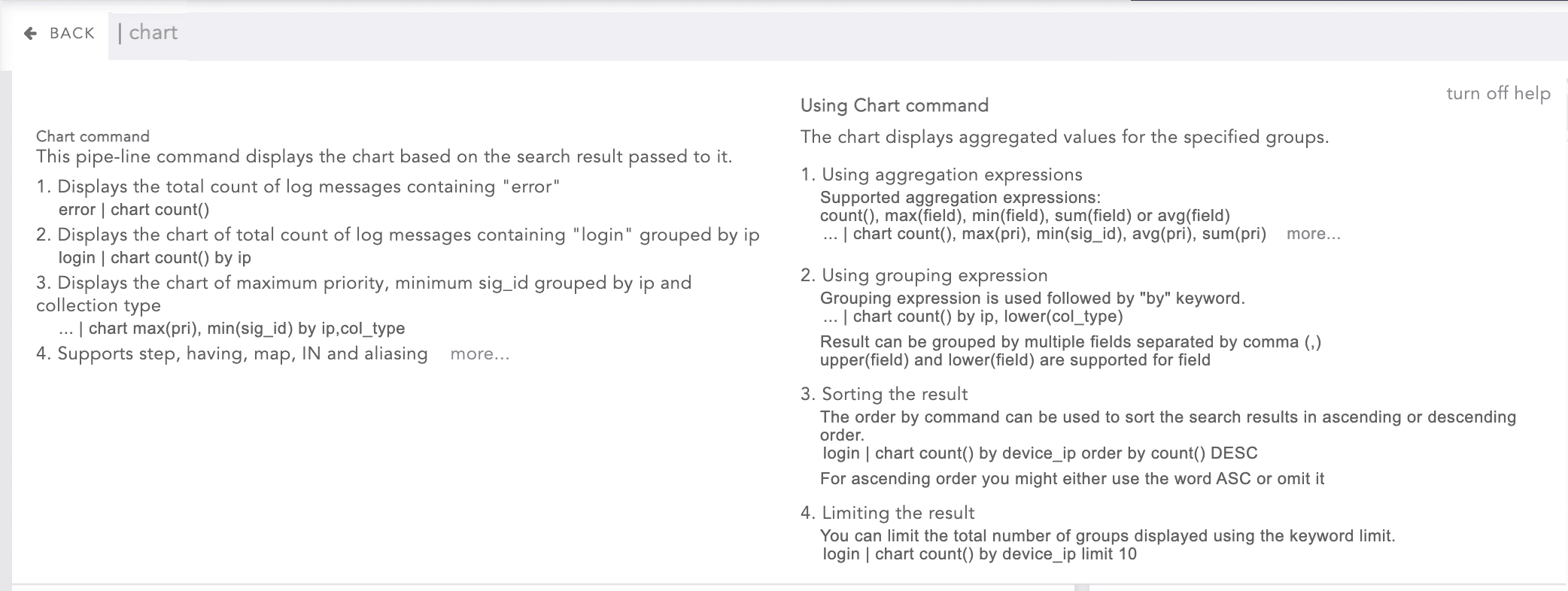
While typing queries in the search bar, LogPoint displays a detailed and dynamic search guide if you have enabled the Display search help pop-up checkbox in My Preferences >> Search.
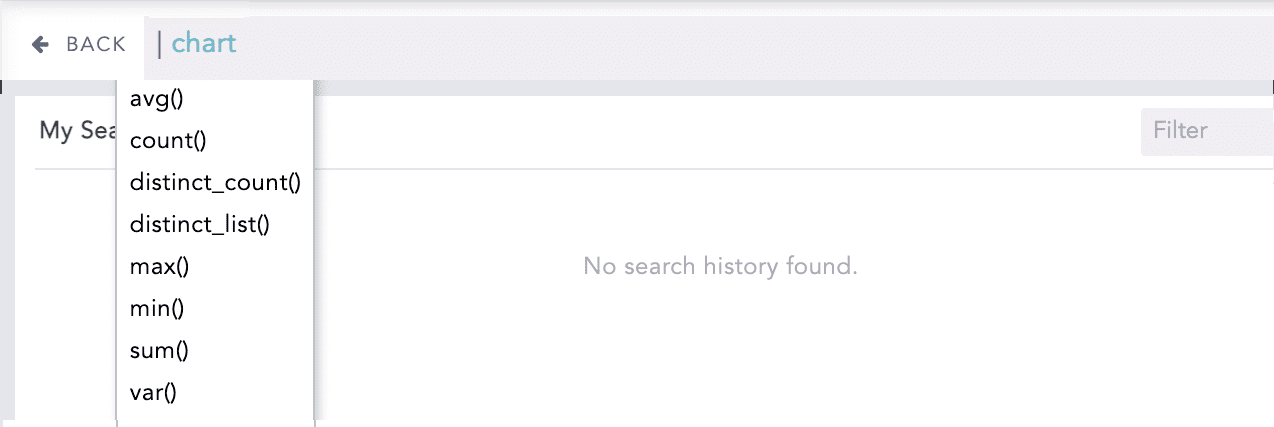
If you have disabled the Display search help pop-up checkbox in My Preferences >> Search, LogPoint suggests only the valid keywords based on your input.
Note
The query bar continues to expand vertically for up to 15 lines. After that, a scroll bar appears to the right.
Move the text-cursor to a bracket to find its pair.
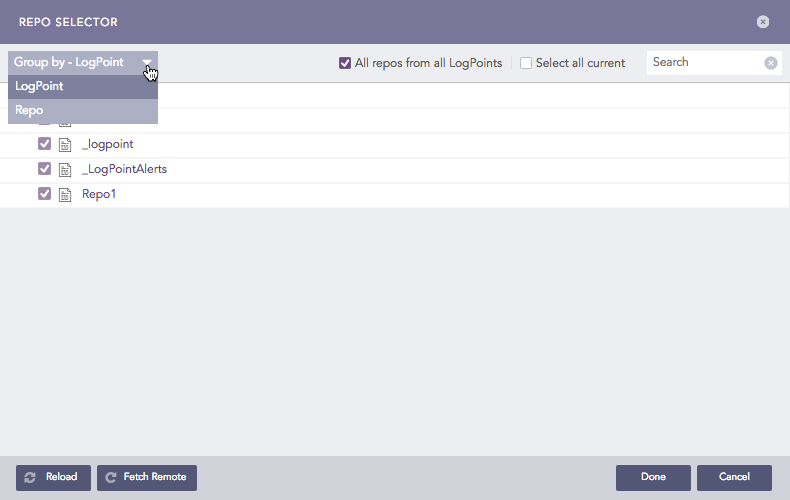
The Repo Selector lets you select the repositories in which to search the logs. Each repository collects the logs and stores them for a pre-defined period. From the Repo Selector, you can select multiple repositories by clicking the drop-down menu on the right. However, for better performance, choose only those repos that are required.

The repos in the Repo Selector are grouped either by Distributed LogPoints (DLP) or by Repo. From the Repo Selector, click Change to open a panel where you can choose to change how the repos are grouped.
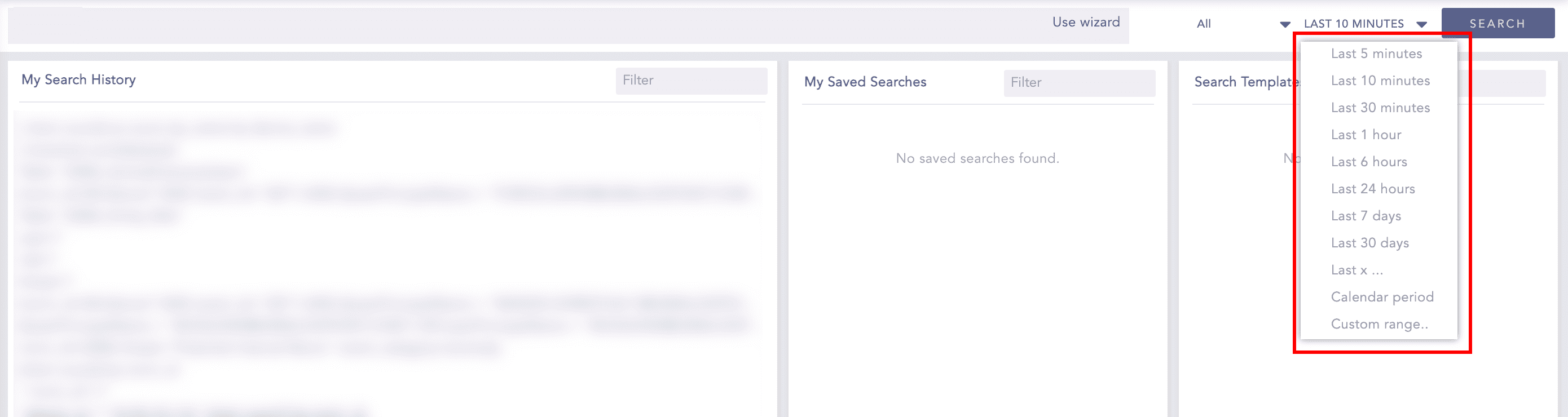
You can select the Time Range and apply it to your search. The default Time Range is Last 10 minutes. You can choose a range in the Last x time-range format, or select a range from the Custom Range time-range picker to set boundaries for your searches. The custom time-ranges Last 1 hour, Last 6 hours, Last 7 days are available in the drop-down menu.
Use Wizard is a utility within LogPoint that guides you through the steps of building a simple search query.
To use Use Wizard, follow the steps below:
Go to Search from the navigation bar.

Click Use Wizard to open the Search Wizard panel.
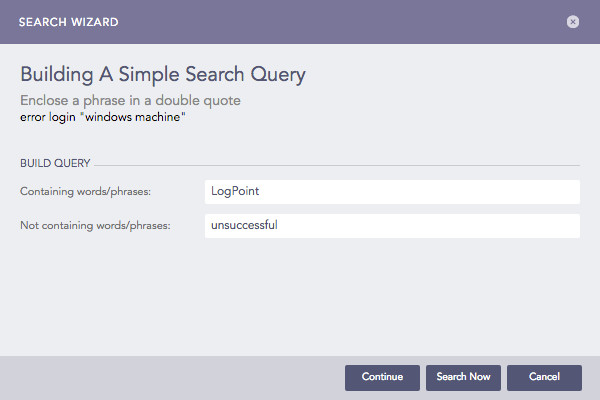
Search Wizard
Enter the words/phrases that you want to search.
Enter the words/phrases that you want to exclude from the results.
Click Continue.
Note
You can click Search Now at any time while building the search query in this way. It searches for the logs using the query built up to that point in the process.
Select a Visualization option.
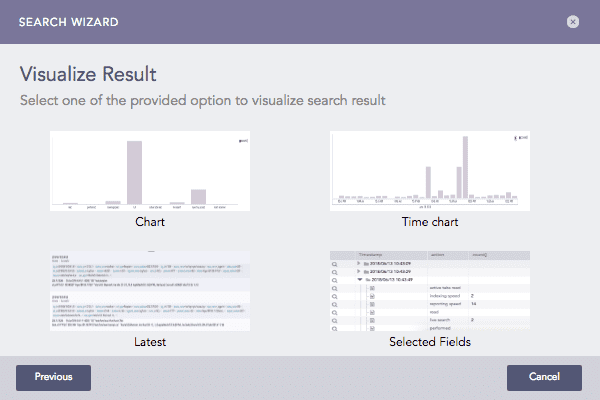
Selecting option to visualize result
Chart or Timechart
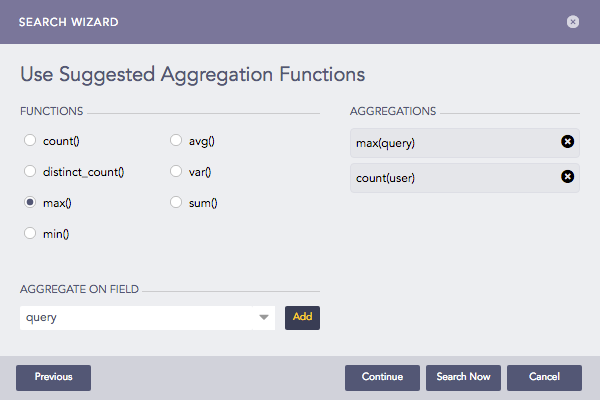
Select a Functions and fields to Aggregate On.
Click Continue.
Choose fields from which to Group the results.
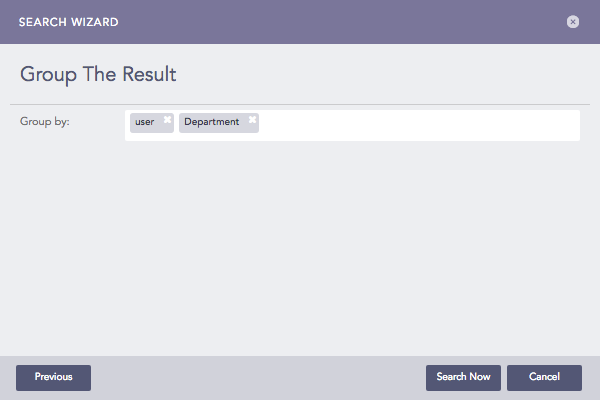
Click Search Now.
Latest
Choose fields from which to Group the latest results by.
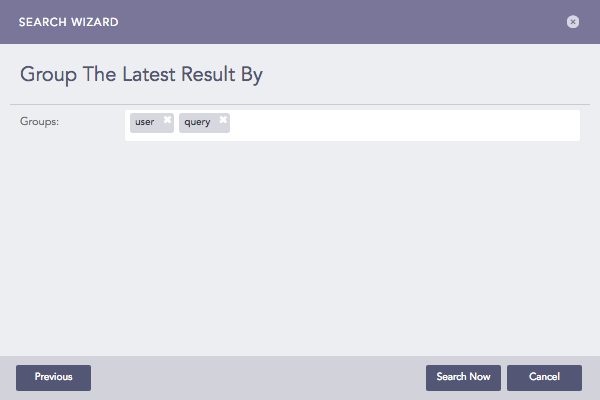
Click Search Now.
Selected Fields
Choose the Fields from the drop-down menu.
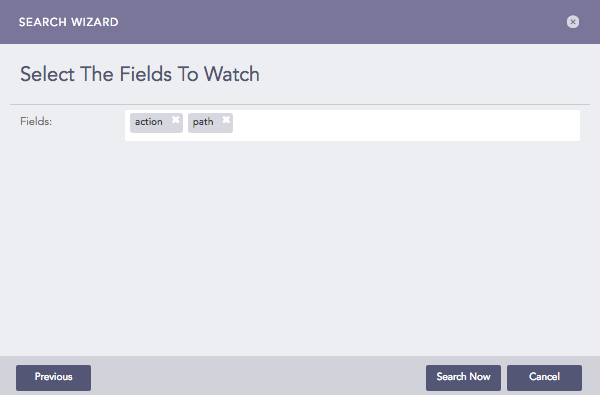
Click Search Now.
Note
In the Data Privacy Module enabled systems, you won’t be able to view the raw logs.